

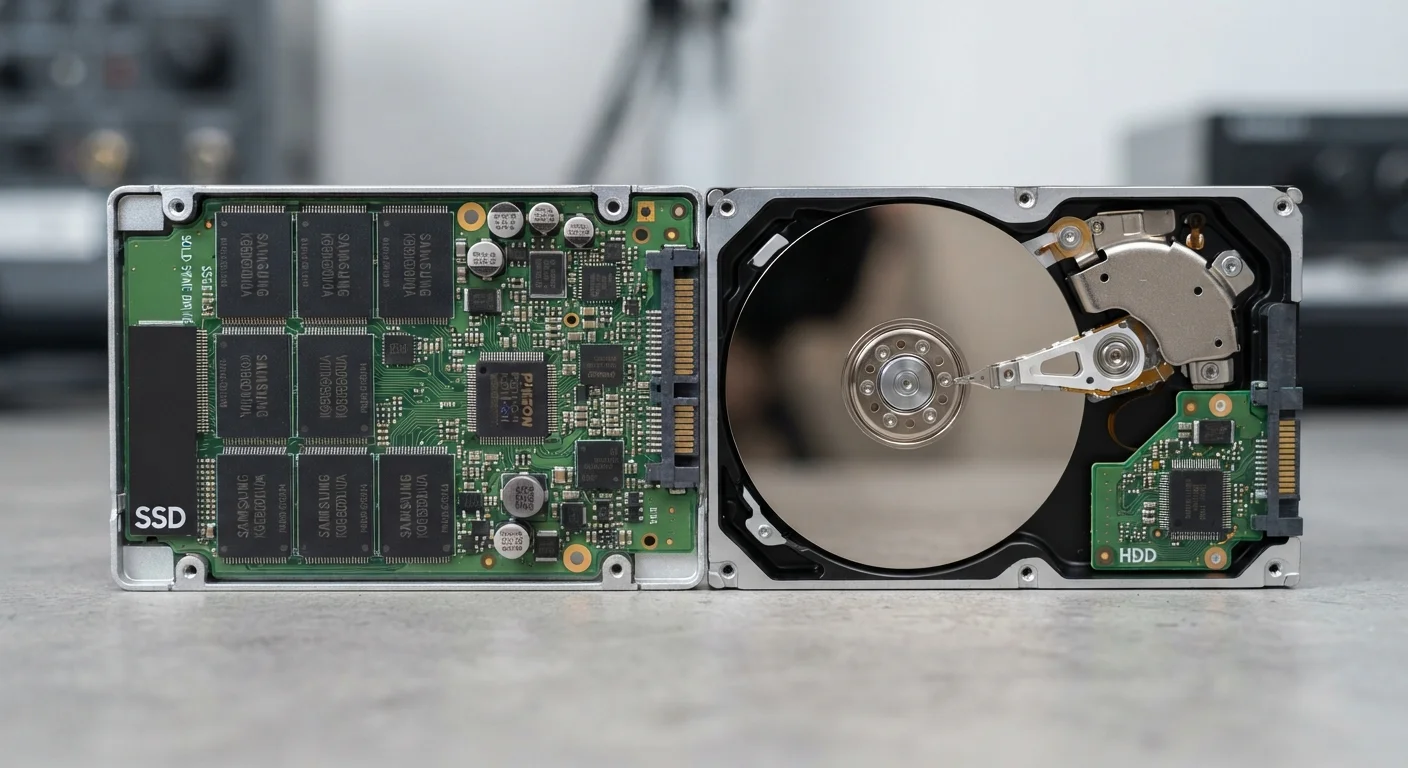
Option A
SSD (Solid-State Drive)
The fast, silent, shock-resistant modern standard.
Best for: Users who prioritize speed, portability, and reliability in everyday computing tasks.
Option B
HDD (Hard Disk Drive)
The high-capacity, lower-cost legacy workhorse.
Best for: Users who need large amounts of storage at a lower price point and can accept slower access speeds.
How Each Drive Type Actually Works
The difference between an SSD and an HDD starts at a mechanical level. A hard disk drive (HDD) stores data on rapidly spinning magnetic platters. A read/write head - a tiny physical arm - moves across those platters to locate, read, and write data. The entire process depends on precise mechanical motion happening thousands of times per second.
A solid-state drive (SSD) contains no moving parts whatsoever. Instead, it stores data in interconnected flash memory chips - the same underlying technology used in USB drives and smartphone storage. Retrieving data is an electronic process, not a mechanical one, which is why it happens so much faster.
This architectural distinction explains nearly every practical difference between the two. As our breakdown of computer specs notes, storage type is one of the most consequential - and most overlooked - factors in how a computer actually performs.
| Criterion | SSD | HDD |
|---|---|---|
| Technology | Flash memory chips | Spinning magnetic platters |
| Read/Write Speed | Very fast (500-7,000+ MB/s) | Slower (80-160 MB/s typical) |
| Boot Time | Under 15 seconds typical | Often 45-90+ seconds |
| Moving Parts | None | Yes (platters and read head) |
| Durability | High - shock resistant | Lower - sensitive to drops |
| Noise | Silent | Audible hum and clicking |
| Power Consumption | Lower | Higher |
| Cost per Gigabyte | Higher | Lower |
| Typical Capacities | 256 GB to 4 TB common | 1 TB to 10+ TB common |
Speed: Where You'll Feel the Difference Most
The speed gap between SSDs and HDDs is large enough to be immediately obvious in everyday use. Boot times are the most dramatic example - a computer with an SSD can go from powered off to a usable desktop in under 15 seconds. The same machine with an HDD might take a minute or more to reach the same state.
Application launch times follow a similar pattern. Programs that take several seconds to open on an HDD-equipped machine often open almost instantly on an SSD. File transfers and saving large documents are also noticeably faster.
~5-10×
Typical SSD speed advantage over HDD
Standard SATA SSDs commonly achieve sequential read speeds around 500-550 MB/s compared to roughly 80-160 MB/s for mechanical hard drives.
0
Moving parts inside an SSD
The complete absence of mechanical components is the primary reason SSDs are faster, quieter, and more durable than traditional hard drives.
This is also why upgrading a sluggish older computer to an SSD is often cited by technicians as one of the most impactful improvements possible. If a machine feels slow, the storage drive is frequently the bottleneck - a point explored in more detail in our article on why computers slow down over time.
Durability, Noise, and Practical Considerations
Because HDDs rely on spinning platters and a moving read/write head, they are sensitive to vibration, drops, and physical shock. A laptop with an HDD that gets knocked off a desk mid-operation risks data loss or drive failure. SSDs, with no moving components, are significantly more resistant to physical impact - a practical advantage in any portable device.
Noise is another real-world difference. HDDs produce an audible hum and occasional clicking sounds during operation. SSDs are completely silent. Heat generation is also lower in SSDs, which can matter in thin laptops where internal airflow is limited.
Power consumption follows the same pattern: SSDs draw less power, which contributes to longer battery life in laptops. For desktop users, the difference is less significant, but the efficiency advantage of SSDs remains. These factors are worth weighing alongside storage type when deciding between a desktop and a laptop.
NVMe SSDs: A Step Beyond Standard SSDs
Not all SSDs are equal. Many modern computers now use NVMe (Non-Volatile Memory Express) SSDs, which connect via the PCIe interface rather than the older SATA connection used by both standard SSDs and HDDs. NVMe drives can reach sequential read speeds of 3,000-7,000+ MB/s - substantially faster than SATA SSDs. If you see 'NVMe' or 'PCIe' listed in a computer's storage specifications, it indicates this faster class of drive. For most everyday tasks, the practical difference between SATA SSD and NVMe is less dramatic than the jump from HDD to SSD.
Capacity, Cost, and What Makes Sense for Different Needs
HDDs still hold a meaningful cost advantage when it comes to raw storage capacity. For users who need several terabytes of space - think large video libraries, extensive photo archives, or game collections - HDDs deliver more gigabytes per dollar than SSDs, though the gap has narrowed considerably in recent years.
SSDs have become far more affordable at common capacities (256 GB to 1 TB), and most new laptops and many desktops now ship with SSDs as standard. The question of how much storage you actually need is worth thinking through carefully - as our piece on what spec sheets don't tell you explains, storage decisions involve more than just the number on the label.
Many desktop users adopt a hybrid approach: a smaller SSD holds the operating system and frequently used programs, while a larger HDD stores files that don't need fast access. This setup captures the speed benefits of an SSD while keeping bulk storage costs manageable.
The content on this site is for informational purposes only and is not a substitute for professional advice. Always consult a qualified professional for guidance specific to your situation.