

The Software Side: Rising Demands on Fixed Hardware
When you buy a computer, it's sized for the software of that moment. Operating systems, browsers, and applications from three years ago were leaner than today's versions. Each major update to Windows or macOS adds new features, security layers, and background services - all of which consume RAM and processor cycles. The hardware hasn't changed, but the load placed on it has grown steadily.
Background processes are a major contributor. Many applications install helper services that run at startup and persist quietly in the background - update checkers, cloud sync agents, antivirus scanners, and telemetry tools. Each one consumes a small fraction of your CPU and memory, but dozens of them together create meaningful drag. This is sometimes called software bloat, and it accumulates without requiring any action from the user.
For a broader look at how computing misconceptions affect decision-making, see common PC myths explained.
Check Your Startup Programs Regularly
Open your operating system's task manager or startup manager and review which applications launch automatically when your computer boots. Disabling programs you don't need at startup is one of the simplest ways to reclaim RAM and reduce background CPU usage. Most applications can still be opened manually when needed.
The Hardware Side: Physical Aging You Can't See
Inside every computer, physical components are undergoing gradual wear. The most consequential for everyday users are storage drives and thermal management systems.
Storage drives degrade in distinct ways depending on type. Traditional hard disk drives (HDDs) rely on spinning magnetic platters; over time, the read/write heads, motor bearings, and magnetic coating all accumulate wear. Solid-state drives (SSDs) use NAND flash memory cells that can only be written a finite number of times before their reliability drops. As an SSD ages or fills up, write speeds in particular can decline noticeably.
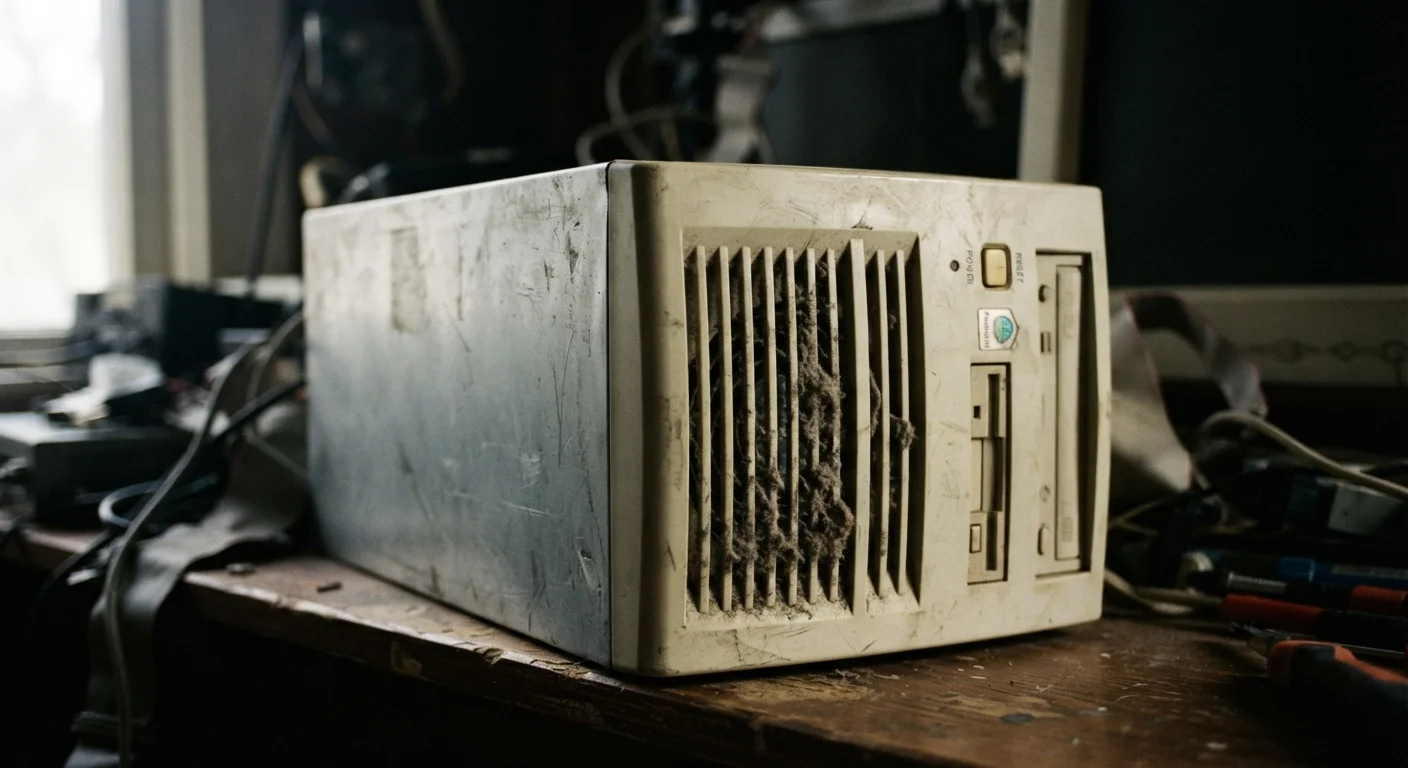
Thermal throttling is one of the least-discussed causes of slowdown. Processors are engineered to reduce their operating speed automatically when they exceed safe temperature thresholds. Dust accumulates on heatsink fins and fan blades over months of operation, restricting airflow and trapping heat. A CPU running at elevated temperatures may throttle itself to 60-70% of its rated speed just to stay within safe limits - making the machine feel dramatically slower without any other change.
~5°C
Temperature rise from moderate dust buildup
Hardware thermal studies consistently show that even moderate dust accumulation on heatsinks can raise CPU temperatures by several degrees Celsius, sufficient to trigger throttling on many processors.
3,000-10,000
Write cycles per NAND flash cell (consumer SSDs)
Consumer-grade TLC NAND flash cells - the most common type in everyday SSDs - are typically rated for roughly 3,000 to 10,000 program-erase cycles before reliability begins to decrease.
~20%
Performance drop when SSD is nearly full
Independent storage performance testing has shown that SSDs operating above 90-95% capacity can experience write speed reductions of roughly 20% or more compared to the same drive at moderate fill levels.
RAM, Storage Space, and the Bottleneck Effect
As software grows more demanding, available memory (RAM) becomes a critical choke point. When a computer runs out of free RAM, the operating system begins using a portion of the storage drive as overflow memory - a process called virtual memory or paging. Accessing data from a storage drive is orders of magnitude slower than accessing it from RAM, which produces the stuttering and lag many users associate with an aging machine.
Similarly, a storage drive that is nearly full struggles to perform efficiently. Both HDDs and SSDs rely on free space to manage temporary files, defragmentation (for HDDs), and wear-leveling algorithms (for SSDs). A drive that is 95% full will behave measurably slower than the same drive at 60% capacity.
These same resource-pressure dynamics affect mobile devices as well - background apps and system overhead drain phone batteries through a parallel mechanism of accumulated load.
Virtual Memory Is a Safety Net, Not a Solution
Operating systems use virtual memory (paging to disk) to prevent crashes when RAM is exhausted, but it isn't a substitute for physical RAM. If your system is frequently paging to disk, you'll notice sluggish multitasking and longer app load times. The fix is reducing memory consumption - either by closing unused applications or, where the hardware supports it, installing additional RAM.
What You Can Actually Do About It
Understanding the causes points directly to practical responses. Cleaning dust from a computer's interior - particularly around the CPU heatsink and case fans - can restore temperatures to safe operating ranges and eliminate thermal throttling. This is one of the highest-impact, lowest-cost maintenance steps most users never take.
Auditing startup programs and uninstalling unused applications reduces background CPU and RAM consumption. Keeping storage drives below 80% capacity preserves their performance characteristics. On machines where it's supported, adding RAM is often the single most effective hardware upgrade for extending useful lifespan.
Certain everyday habits also accelerate hardware degradation in ways that aren't immediately obvious. Common laptop habits can shorten hardware lifespan faster than most users expect - heat exposure, vibration during use, and inconsistent charging practices all contribute over time.
No computer runs forever, and hardware generations do eventually fall behind the demands of current software. But in many cases, what feels like an aging machine is actually a fixable accumulation of dust, software overhead, and storage pressure - not a fundamental hardware failure.
Frequently Asked Questions
Software updates, new applications, and operating system expansions demand progressively more processing power and memory. At the same time, hardware components physically age and accumulate wear. The gap between what your hardware can do and what your software expects it to do widens over time.
Yes, significantly. Dust clogs the heatsink fins and fan blades that cool your processor and graphics chip. When temperatures rise too high, modern CPUs automatically reduce their clock speed - a process called thermal throttling - to prevent damage, which directly reduces performance.
SSDs do degrade, though differently from traditional spinning hard drives. NAND flash memory cells have a finite number of write cycles, and as a drive fills up or ages, read and write speeds can drop measurably. Keeping an SSD below about 80-85% capacity helps preserve performance.
Often yes. Cleaning dust from internal components, removing unused startup programs, uninstalling bloatware, and ensuring your storage drive has adequate free space can restore meaningful performance. Adding RAM is one of the most cost-effective hardware upgrades for machines that support it.
Usually both contribute. Hardware ages physically and loses efficiency; software grows in size and complexity. Diagnosing which factor dominates requires checking resource usage in your operating system's task manager and monitoring temperatures under load.
When the cost of hardware upgrades approaches or exceeds the value of the machine, or when the CPU and motherboard can't support modern software requirements, replacement often makes more sense. <a href="/shopping/product-categories/consumer-electronics-youre-probably-replacing-too-soon">Many devices have more usable life than people assume</a>, so a full diagnosis before replacing is worthwhile.
The content on this site is for informational purposes only and is not a substitute for professional advice. Always consult a qualified professional for guidance specific to your situation.