

Start here
What Is a Peripheral?
Next
Input Devices: How You Talk to Your Computer
Then
Output Devices: How Your Computer Talks Back
Going deeper
Connectivity and Expansion Accessories
Apply it
Choosing the Right Peripherals for Your Needs
What Is a Peripheral?
A peripheral is any external device that connects to your computer but is not part of the computer's core processing hardware. Your processor, memory (RAM), and storage all live inside the machine - peripherals live outside it, plugging in through cables or wirelessly to expand what your system can do.
The word comes from the Greek for "surrounding," which describes their role well: peripherals surround your core computing hardware and make it more useful. Understanding how they fit together is a natural next step once you're familiar with internal specs - if you want a refresher on those, see our guide on what RAM, storage, and CPU specs actually mean.
Peripheral
An external device that connects to a computer to extend its functionality, such as a keyboard, printer, or webcam.
Input device
A peripheral that sends information to the computer - for example, a keyboard sends keystrokes and a microphone sends audio.
Output device
A peripheral that receives information from the computer and presents it to the user, such as a monitor showing images or speakers playing sound.
USB hub
A small accessory that plugs into one USB port and provides several additional ports, letting you connect multiple devices at once.
Docking station
A connectivity hub that connects to a laptop via a single cable and provides multiple ports - including display, USB, and network connections - all at once.
Plug-and-play
A term describing devices your computer recognizes and sets up automatically, without requiring you to install additional software or drivers.
Bluetooth
A short-range wireless standard that lets peripherals like keyboards, mice, and headphones connect to your computer without a cable or USB dongle.
Driver
Software your operating system uses to communicate with a specific peripheral. Some devices require you to install a driver; many common ones work automatically.
Input Devices: How You Talk to Your Computer
Input devices are peripherals that send information to your computer. They translate your actions - typing, pointing, speaking, drawing - into digital signals the machine can process.
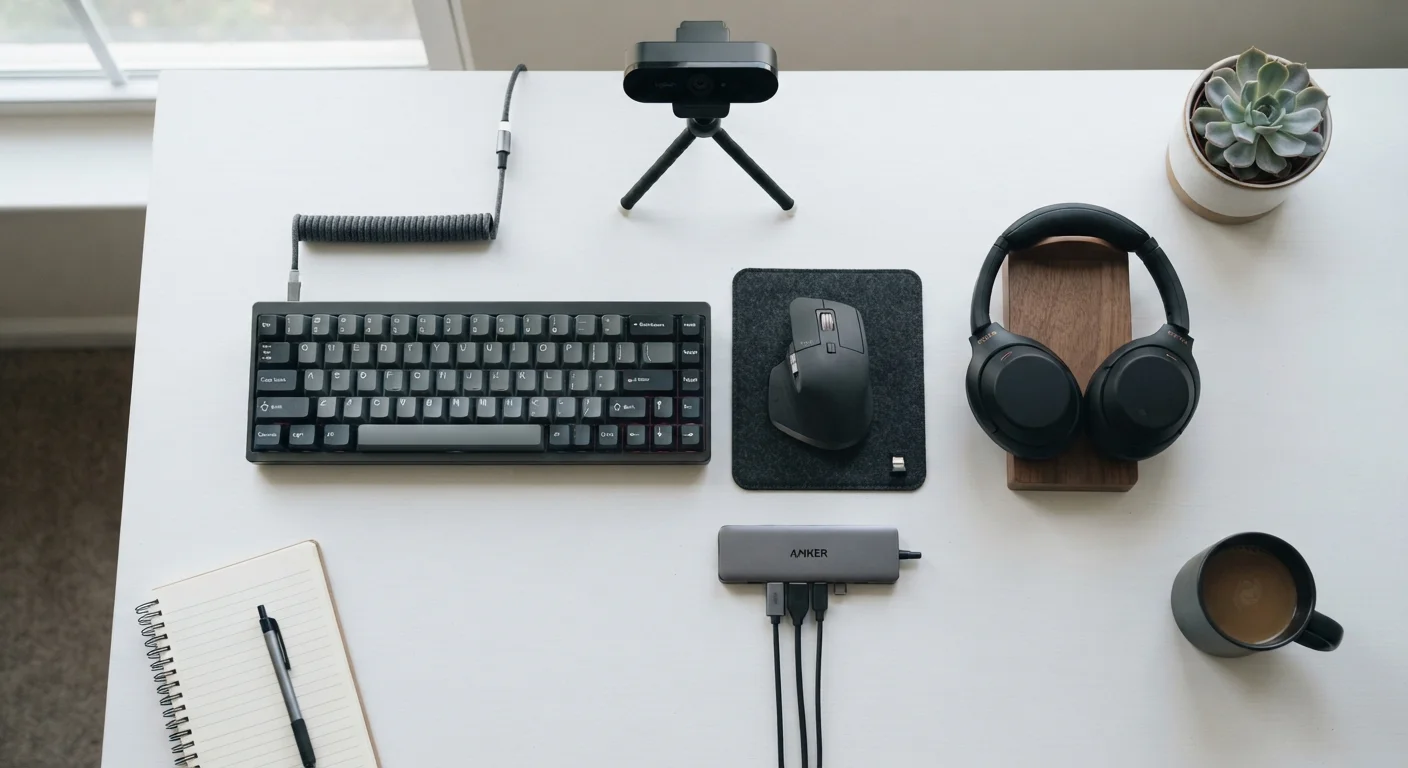
- Keyboard: The most fundamental input device. Mechanical keyboards use individual physical switches under each key, producing a tactile feel and audible click. Membrane keyboards use a softer, quieter layer instead. Neither is objectively better; preference is personal.
- Mouse: Moves the cursor and lets you click, drag, and scroll. Optical mice use a light sensor to track movement on most surfaces. Trackpads (built into laptops) and trackball mice are alternatives for users with limited desk space.
- Webcam: Captures live video for calls, streaming, or recording. Many laptops include a built-in camera, but a standalone external webcam typically offers higher resolution and better low-light performance.
- Microphone: Picks up audio for calls, recordings, and voice commands. Headset microphones are convenient for calls; dedicated USB condenser microphones better serve podcasters or content creators.
- Drawing tablet: A pressure-sensitive surface paired with a stylus, used by graphic designers, illustrators, and photo editors. The tablet translates pen pressure and movement into precise digital strokes.
- Scanner: Converts physical documents or photos into digital files. Flatbed scanners handle most general tasks; sheet-fed scanners move paper automatically and suit high-volume document work.
Start with what you need most
If you're building out a peripheral setup from scratch, prioritize the devices that match your most frequent tasks - a comfortable keyboard and mouse first, then expand from there. Adding peripherals gradually lets you figure out what genuinely helps before spending on accessories you may not use.
Output Devices: How Your Computer Talks Back
Output devices receive data from your computer and present it to you in a usable form - visually, as sound, or on paper.
- Monitor: Displays everything you see on screen. Resolution, refresh rate, and panel type all affect your experience significantly. For a detailed breakdown of monitor specs, see what to look for when choosing a computer monitor.
- Speakers and headphones: Deliver audio output. External speakers suit a shared workspace; headphones or headsets give private listening and are essential for video calls in noisy environments.
- Printer: Produces physical copies of documents or images. Inkjet printers handle color and photo printing well; laser printers are faster and more economical for high-volume black-and-white text.
- Projector: Displays your screen onto a larger surface. Useful for presentations and home theater setups, though monitors have largely replaced projectors for everyday desktop use.
Some devices are both input and output
A touchscreen monitor, for instance, functions as both an output device (displaying content) and an input device (registering touch). Similarly, a headset with a microphone serves both roles. These are sometimes called I/O devices. The input/output categories are useful for understanding function, not strict rules every device must fit neatly into.
Connectivity and Expansion Accessories
Some peripherals don't directly input or output information - instead, they expand your computer's ability to connect to other devices.
- USB hub: A small device that turns one USB port into several. Useful when your computer has limited ports and you need to connect multiple accessories at once.
- Docking station: A more capable hub, often connecting via a single USB-C or Thunderbolt cable and offering HDMI, multiple USB-A ports, an Ethernet jack, and audio ports simultaneously. Popular with laptop users who want a desktop-like setup at a desk.
- External storage: Hard drives and solid-state drives (SSDs) that plug into your computer via USB to add storage capacity or back up files. SSDs are faster but more expensive per gigabyte than traditional hard drives.
- Wireless adapters: Small USB dongles that add Wi-Fi or Bluetooth capability to computers that lack it built-in, or upgrade older hardware to newer wireless standards.
Understanding which ports your computer has - and what each one supports - is essential before buying any connectivity accessory. Our plain-language guide to computer ports and connectors explains USB-A, USB-C, HDMI, Thunderbolt, and more in plain terms.
Choosing the Right Peripherals for Your Needs
There's no single peripheral setup that suits everyone. The right accessories depend on what you actually do at your computer.
- Remote workers and video callers benefit most from a quality webcam, a dedicated microphone or headset, and a second monitor to expand screen space.
- Creative professionals - photographers, designers, video editors - often add a drawing tablet, a color-accurate monitor, and external storage for large project files.
- Home office setups frequently rely on a docking station to keep a laptop connected to a full keyboard, monitor, and mouse with a single cable swap.
- Students and general users can usually get by with a reliable keyboard, mouse, and perhaps a pair of headphones.
Before purchasing any peripheral, confirm it is compatible with your computer's available ports and operating system. If you're still weighing whether a desktop or laptop suits your lifestyle - which affects what peripherals you'll rely on most - our comparison of desktop vs. laptop trade-offs can help frame that decision. Finally, when you're ready to shop, the buyer's glossary of common shopping terms is a practical reference for decoding product listings.
Check port compatibility before you buy
Not all peripherals work with every port. A monitor requiring DisplayPort won't connect to an HDMI-only laptop without an adapter, and some docking stations require Thunderbolt rather than standard USB-C. Always verify your computer's available ports against a peripheral's connection requirements before purchasing.
Frequently Asked Questions
Any external hardware device that connects to your computer and either sends data to it or receives data from it qualifies as a peripheral. Common examples include keyboards, mice, monitors, printers, webcams, and external hard drives. The computer functions without them, but peripherals expand what you can do.
Most peripherals are compatible with both desktops and laptops, as long as your computer has the appropriate port or supports Bluetooth. Laptops with limited ports often benefit most from expansion accessories like USB hubs or docking stations.
Wired peripherals connect via a cable (usually USB) and generally offer a stable, low-latency connection with no battery to manage. Wireless peripherals use Bluetooth or a USB dongle and offer more freedom of movement, though they require periodic charging or battery replacement.
Many common peripherals - mice, keyboards, standard webcams - are plug-and-play, meaning your operating system recognizes them automatically. More specialized devices like drawing tablets, audio interfaces, or advanced cameras may require manufacturer drivers to unlock their full features.
A docking station is a hub that connects to your laptop (often via a single USB-C or Thunderbolt cable) and instantly gives you access to multiple ports - HDMI, USB-A, Ethernet, and more. They are especially useful for people who work from home and want a desktop-like setup they can unplug from quickly.
In most cases, yes. Mice, keyboards, monitors, and headsets generally work across platforms since they rely on universal standards like USB or Bluetooth. Some keys and shortcuts may behave differently, and manufacturer software designed for one platform may not be available on the other.
The content on this site is for informational purposes only and is not a substitute for professional advice. Always consult a qualified professional for guidance specific to your situation.