

Why Ports Matter More Than You Think
When you unbox a new laptop or desktop, the ports along its edges determine what you can physically connect to it - monitors, external drives, phones, keyboards, and more. Choosing a computer without checking its ports can mean needing adapters for devices you already own, or discovering a key feature isn't supported at all.
This reference guide cuts through the technical shorthand to explain what each common port actually does, what it looks like, and where you're likely to encounter it. For related hardware terminology, see our breakdown of RAM, storage, and CPU specs.
| Most universal port type | USB-A (rectangular) |
| Reversible connector | USB-C (oval, fits either way) |
| Audio + video in one cable | HDMI and DisplayPort |
| Thunderbolt physical shape | Same as USB-C |
| Wired internet port | Ethernet / RJ-45 |
| Thunderbolt identifier | Lightning bolt icon next to port |
USB Ports: The Most Common Connectors Explained
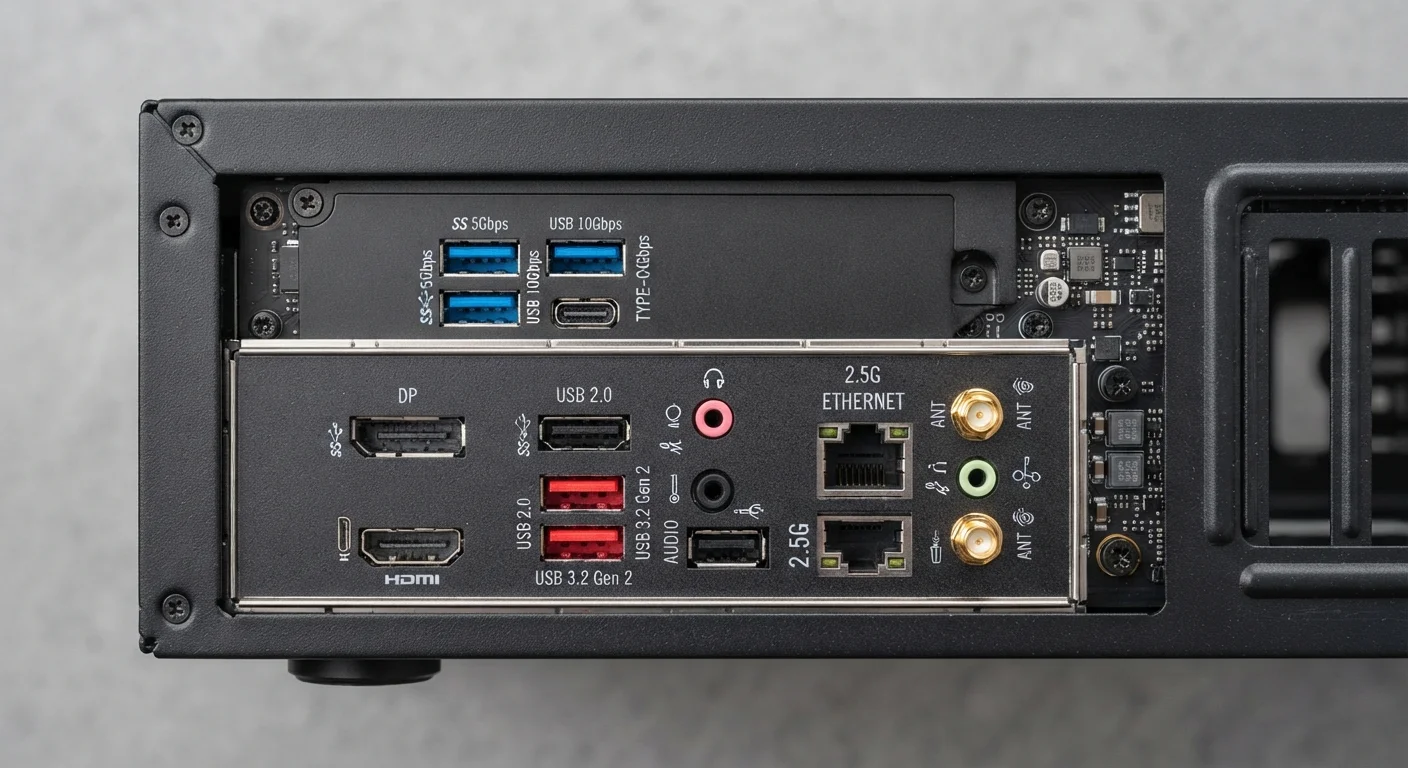
USB-A is the rectangular port most people picture when they think of USB. It's been on computers since the late 1990s and still appears on nearly every desktop and many laptops. USB-A handles mice, keyboards, flash drives, and phone charging cables with the older rectangular plug.
USB-C is a smaller, oval-shaped connector that is reversible - you can plug it in either way. Modern laptops increasingly rely on USB-C as their primary port. USB-C can carry data, video output, and power delivery over a single cable, making it notably versatile.
USB 3.x vs. USB 2.0 refers to the version of the USB standard, not the physical shape. USB 3.0 and newer generations transfer data significantly faster than USB 2.0. A port's version is often indicated by color-coding: blue typically signals USB 3.0 on older machines, though manufacturers aren't consistent.
USB (Universal Serial Bus)
A standardized connection system for attaching peripherals to computers. It comes in several physical shapes (USB-A, USB-C, Micro-USB) and speed versions (USB 2.0, USB 3.x).
Thunderbolt
A high-speed port technology developed by Intel that uses the USB-C physical shape but offers faster data transfer and broader device support. Identified by a lightning bolt icon.
HDMI
High-Definition Multimedia Interface - a single-cable connector that carries both digital video and audio signals, widely used on monitors, TVs, and projectors.
DisplayPort
A digital display interface common on PC monitors and graphics cards. It supports high refresh rates and resolutions, and has a distinctive shape with one angled corner.
Power Delivery (USB PD)
A charging standard built into USB-C that allows a port to deliver higher wattage, enabling it to charge laptops and other power-hungry devices - not just phones.
Daisy-Chaining
Connecting multiple devices in a series from a single port. Thunderbolt supports daisy-chaining, meaning you can link several monitors or drives through one port.
Display Ports: Connecting Monitors and Screens
HDMI (High-Definition Multimedia Interface) is the most widely recognized display connector. It carries both video and audio over one cable and is standard on televisions, monitors, and projectors. Most desktop graphics cards and many laptops include at least one full-size HDMI port.
DisplayPort looks similar to HDMI but has one angled corner instead of two. It's common on PC monitors and frequently found on desktop computers. DisplayPort generally supports higher refresh rates and resolutions than comparable HDMI versions, making it a common choice for high-performance displays.
Mini DisplayPort is a smaller version of DisplayPort used on some older laptops and compact systems. It carries the same signal but requires an adapter or cable specifically rated for it.
For context on how display connectivity factors into mobile devices, see our smartphone terms glossary.
48 Gbps
Max bandwidth of HDMI 2.1
HDMI 2.1 supports up to 48 Gbps, enabling 4K at 120Hz and 8K at 60Hz, according to the HDMI Forum specifications.
40 Gbps
Thunderbolt 4 data transfer speed
Intel specifies Thunderbolt 4 at up to 40 Gbps bidirectional data transfer - significantly faster than standard USB 3.2.
10 Gbps
USB 3.2 Gen 2 peak speed
USB 3.2 Gen 2 reaches up to 10 Gbps, compared to USB 2.0's 480 Mbps ceiling - a roughly 20x improvement per USB-IF specifications.
Thunderbolt and Specialized Ports
Thunderbolt is a high-speed interface developed by Intel. Thunderbolt 3 and 4 use the same physical USB-C connector, which causes frequent confusion. The key difference is capability: Thunderbolt supports faster data transfer, daisy-chaining multiple devices, and connecting high-bandwidth external displays or storage. A Thunderbolt port is usually identified by a lightning bolt icon next to it.
Ethernet (RJ-45) is the rectangular port used for wired internet connections. It's common on desktops and many larger laptops but often absent on slim ultrabooks. A wired Ethernet connection typically provides more stable speeds than Wi-Fi for tasks like video calls or large file transfers.
3.5mm Audio Jack is the round headphone port found on most computers. Some thin laptops have dropped it in favor of USB-C audio adapters. It handles both headphones and microphone input depending on configuration.
If you're comparing how ports factor into your next purchase decision, our desktop vs. laptop trade-offs guide covers port availability differences between form factors. For more general shopping vocabulary, the Informed Buyer's Glossary is a useful companion resource.
Adapters Can Bridge the Gap
If your computer lacks a specific port, adapters and docking stations can expand your options. A USB-C hub, for example, can add HDMI output, USB-A ports, and an SD card reader to a laptop with only USB-C connections. When using adapters for video output, verify the adapter is rated for the resolution and refresh rate your monitor requires - not all adapters support the same signal bandwidth.
The content on this site is for informational purposes only and is not a substitute for professional advice. Always consult a qualified professional for guidance specific to your situation.