

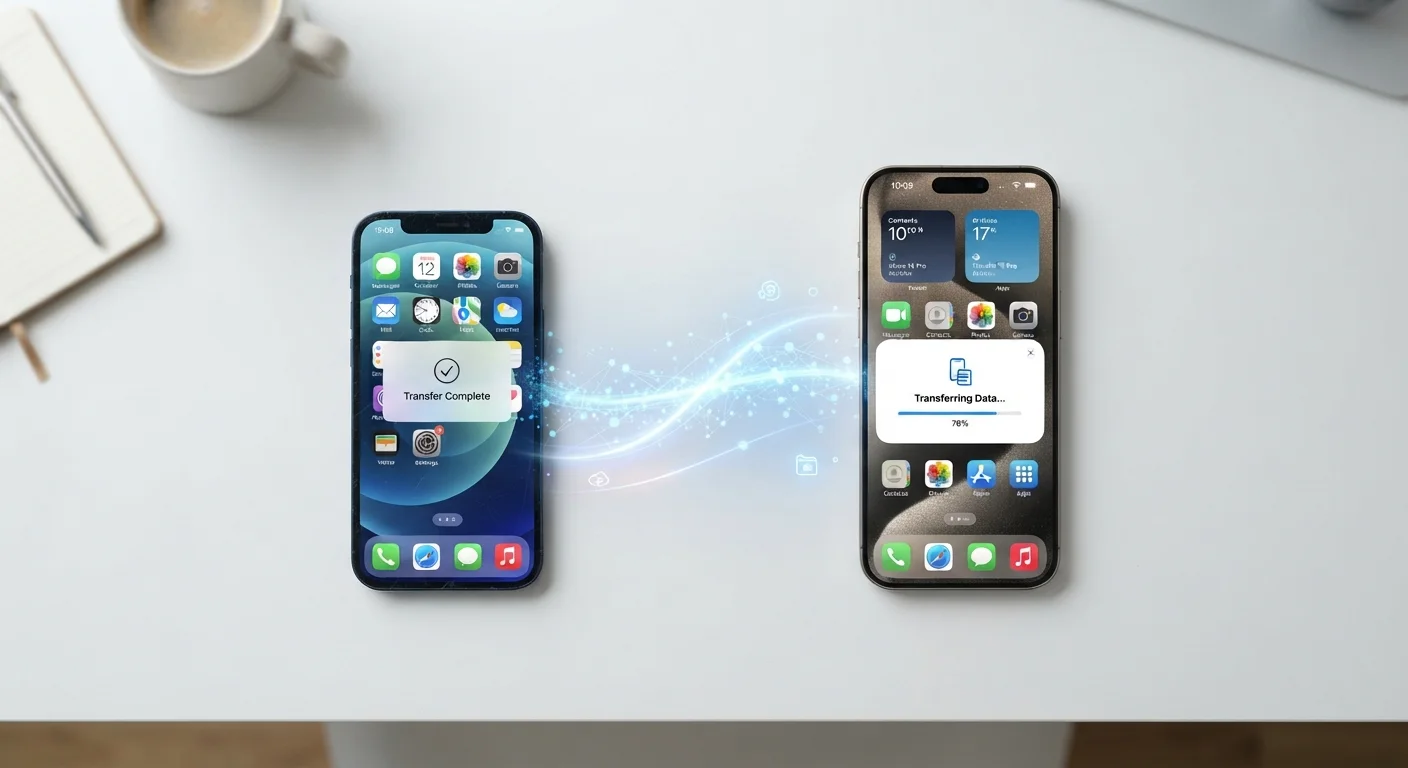
Why Phone Transfers Go Wrong - and How to Avoid It
Switching to a new phone is straightforward in theory, but there are consistent patterns that cause people to lose data or encounter frustrating gaps. The most common: not verifying the backup before starting, running out of cloud storage mid-transfer, or wiping the old device too early. Understanding these failure points is half the battle.
Both Android and iOS have matured considerably in their migration tooling. Google's backup system covers contacts, app data, call history, SMS, and Wi-Fi passwords. Apple's iCloud Backup covers similar ground, and the iOS Quick Start feature allows a direct phone-to-phone transfer that is often faster and more complete than a cloud restore. Neither method is perfect, however - certain app data (especially from third-party apps) and local files not synced to any cloud service can slip through the cracks.
For new device owners who want broader context on setup beyond data transfer, our guide for new smartphone users covers account setup, notification management, and storage fundamentals worth reading alongside this process.
Charge Both Phones Before You Start
A transfer interrupted by a dead battery can corrupt files or leave data only partially moved. Plug both devices into power at the start of the process and leave them connected throughout. If a charger is unavailable, ensure both phones are above 80% before beginning.
What Transfers Automatically - and What Doesn't
It helps to know in advance which data types transfer reliably and which need manual attention.
Typically transfers automatically:
- Contacts synced to Google or iCloud
- Photos and videos backed up to Google Photos or iCloud Photos
- App list (apps are re-downloaded; not all app data is included)
- Wi-Fi passwords (Android to Android; iPhone to iPhone)
- System settings and display preferences
Often requires manual attention:
- Two-factor authentication app accounts
- WhatsApp and some other messaging apps (these have separate in-app backup and restore features)
- Files stored only locally and not in any cloud service
- Banking app re-enrollment (most banks require you to re-verify your identity on the new device)
Authenticator Apps Need Special Handling
Two-factor authentication (2FA) apps like Google Authenticator do not automatically migrate during a standard phone transfer. If you simply move to a new device without first exporting or transferring these accounts, you could be locked out of important services. Check your authenticator app's export or account-transfer feature before you begin and handle it separately.
Once your new device is running smoothly, it's a good opportunity to review your security posture. Practical mobile security habits - from lock screen settings to app permissions - help protect the data you've just moved. And if you notice your new phone's battery behaving unexpectedly, background app and sync behavior is worth reviewing as well.
Don't Wipe Your Old Phone Too Soon
Keep your old phone active and unwiped until you have fully confirmed that all data - especially photos, contacts, and app data - has transferred correctly to the new device. Restoring from scratch after an early wipe is significantly harder. Check every folder and app before performing a factory reset.
The content on this site is for informational purposes only and is not a substitute for professional advice. Always consult a qualified professional for guidance specific to your situation.