

Our Verdict
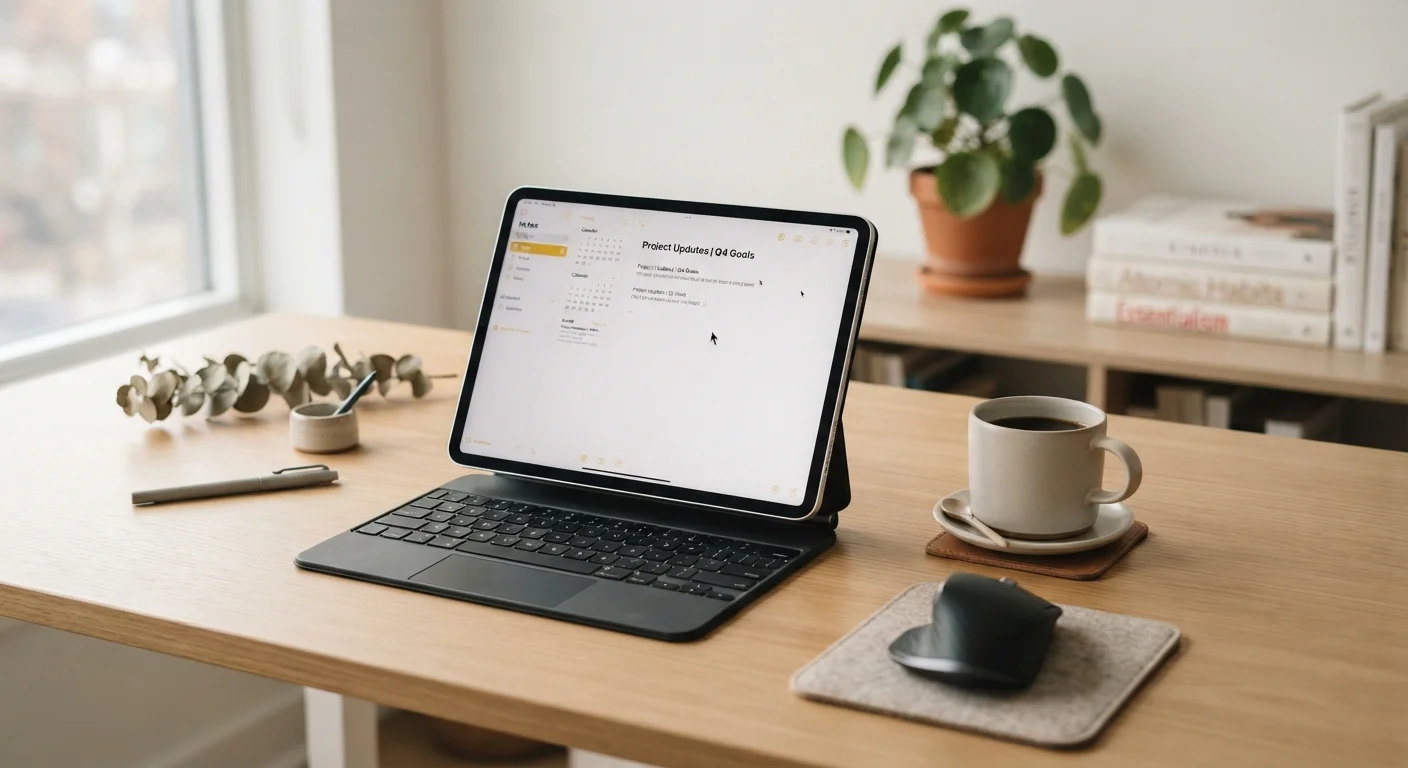
Tablets have matured into genuine productivity tools, and for a meaningful portion of users - students, remote workers with browser-centric jobs, creative note-takers - they can fully replace a traditional laptop. But the gap becomes obvious the moment you need powerful desktop software, precise file management, or a comfortable multi-tasking environment. The honest answer is that a tablet's fitness as a laptop replacement depends almost entirely on the specific tasks you do every day.
Best suited to users whose daily work centers on communication, content consumption, light document editing, and cloud-based apps - and who value portability and battery life above raw computing power.
Why the Question Matters More Now
A few years ago, asking whether a tablet could replace a laptop felt almost hypothetical. Today it's a practical question millions of people face when a device needs replacing or a budget demands compromise. Tablet operating systems have grown considerably more capable, keyboard accessories have improved, and cloud software has reduced the need for locally installed applications.
Still, the marketing language around tablets tends to outpace reality. Terms like "laptop-class performance" describe processor benchmarks - not the full experience of getting work done. Before you decide, it's worth understanding exactly where tablets deliver and where they still fall short. If you're also weighing connectivity options for a tablet you already own or plan to buy, our piece on cellular vs. Wi-Fi-only tablets covers that decision in detail.
Where Tablets Genuinely Shine
The advantages of tablets over laptops aren't just about thinness. Several practical strengths make them the right tool for a wide range of users.
Significantly longer battery life in most usage scenarios
Tablets routinely achieve 10-14 hours of real-world battery life, outperforming most consumer laptops. For travelers and people who move between locations throughout the day, this difference is substantial.
Lighter and more portable than even thin laptops
Most tablets weigh under 1.5 pounds without a case, compared to 2.5-4 pounds for typical thin-and-light laptops. That difference becomes meaningful when carrying a device all day.
Touch interface suits media, drawing, and note-taking well
For annotating documents, sketching ideas, signing forms, or navigating media, a touch screen offers a more natural interaction model than a trackpad. Paired with a stylus, tablets become capable note-taking and illustration tools.
Instant-on and fast wake from sleep
Tablets typically resume instantly from sleep, similar to a smartphone. This low-friction startup supports quick, frequent check-ins throughout the day without waiting through boot sequences.
Quieter and fanless design in many models
Many tablets use processors that don't require active cooling fans, making them completely silent during operation - an advantage in meetings, libraries, or quiet work environments.
For people whose work lives largely inside a browser, a video-calling app, or a document editor, these advantages often outweigh the limitations. The question is whether your workflow fits that profile.
The Real Limitations You Should Expect
Tablets impose constraints that no keyboard case or software update fully resolves - at least not yet. Understanding these trade-offs honestly is essential before committing.
Multitasking remains limited compared to desktop OS
Even the most advanced tablet operating systems cap you at two or three simultaneous app windows. Power users accustomed to managing five or more windows across a large display will find this a genuine productivity bottleneck.
Many professional desktop applications are unavailable
Full versions of tools used in fields like engineering, architecture, data science, and video production typically don't exist as tablet apps. Mobile versions, where they exist, are usually stripped-down alternatives.
Keyboard and mouse experience is secondary, not native
While keyboard and trackpad support has improved considerably, the underlying operating system is still optimized for touch. Some interface elements remain awkwardly sized or spaced for pointer-based navigation.
External port and peripheral options are limited
Most tablets include a single USB-C port, requiring a hub for connecting monitors, drives, or other peripherals simultaneously. This adds complexity and potential points of failure to workflows that depend on external hardware.
Storage is typically fixed and harder to expand
Unlike laptops, most tablets don't support user-upgradeable storage. Users who work with large files - video, audio, photography - may find even higher-storage tiers insufficient over time.
It's also worth noting that file management on most tablets remains more restrictive than on traditional operating systems. Moving files between apps, connecting external drives, or managing a folder structure can require workarounds that feel friction-heavy compared to a laptop. For a deeper comparison of how traditional computers stack up on performance and flexibility, see our article on desktop vs. laptop trade-offs.
Operating System Matters as Much as Hardware
When evaluating a tablet for work, the operating system is often more consequential than the processor or RAM. Different tablet platforms have meaningfully different app ecosystems, file management capabilities, and external display support. Before assuming a tablet can handle your workflow, verify that the specific software you rely on is available and fully functional on that platform - not just listed in an app store.
The Hidden Costs of Going Tablet-Only
A tablet's base price can look attractive compared to a laptop, but the total cost of ownership often surprises people. A quality keyboard case, a stylus, and any necessary adapters or hubs can add hundreds of dollars to the initial outlay - narrowing or eliminating the price gap.
Accessories also introduce complexity. A keyboard case adds weight and thickness, partially eroding the portability advantage. Hubs or dongles can fail or be forgotten at home. These aren't deal-breakers, but they're worth factoring into your decision rather than discovering after purchase. If you want to understand what hardware specifications actually mean for everyday computing tasks, what the spec sheet doesn't tell you about buying a laptop offers a useful framework.
~$150-$300
Typical cost to add keyboard and stylus accessories
Quality keyboard cases and active styluses from established manufacturers generally fall in this combined range, which can significantly affect the total cost comparison with a laptop.
10-14 hrs
Average real-world battery life for modern tablets
Independent testing by technology publications consistently finds tablets outperforming most consumer laptops by several hours under comparable workloads.
Who Should - and Shouldn't - Make the Switch
The most useful way to evaluate this decision is to map your actual daily tasks, not your aspirational ones. Think about the last two weeks of work: What software did you open? How many windows did you have open at once? Did you plug in external devices?
If your answers involve spreadsheets with complex macros, video editing timelines, code development environments, or any specialized industry software, a tablet is unlikely to replace your laptop without significant compromise. On the other hand, if your day consists of email, video calls, web research, note-taking, and light document editing, a capable tablet with a keyboard accessory can handle it comfortably - and may actually serve you better given the battery and portability advantages.
It's also worth considering how well you take care of the devices you own. For anyone keeping a laptop as a backup or secondary device, our article on habits that quietly shorten a laptop's lifespan highlights some easy-to-miss behaviors that affect longevity.
The content on this site is for informational purposes only and is not a substitute for professional advice. Always consult a qualified professional for guidance specific to your situation.