

Summary
18 items · 30-90 minutes
Why Preparation Matters More Than You Think
Trading in a phone feels straightforward - hand it over, get credit toward something new. But skipping even one step in the preparation process can mean losing irreplaceable photos, locking out the next owner (which voids your trade-in value), or leaving sensitive personal data fully accessible to strangers.
This checklist covers every meaningful step, in order, so nothing slips through. Whether you're using Android or iOS, the core tasks are the same: protect your data first, then clean the device thoroughly. For a closer look at keeping your data secure in general, see our guide on mobile security habits that actually protect your data.
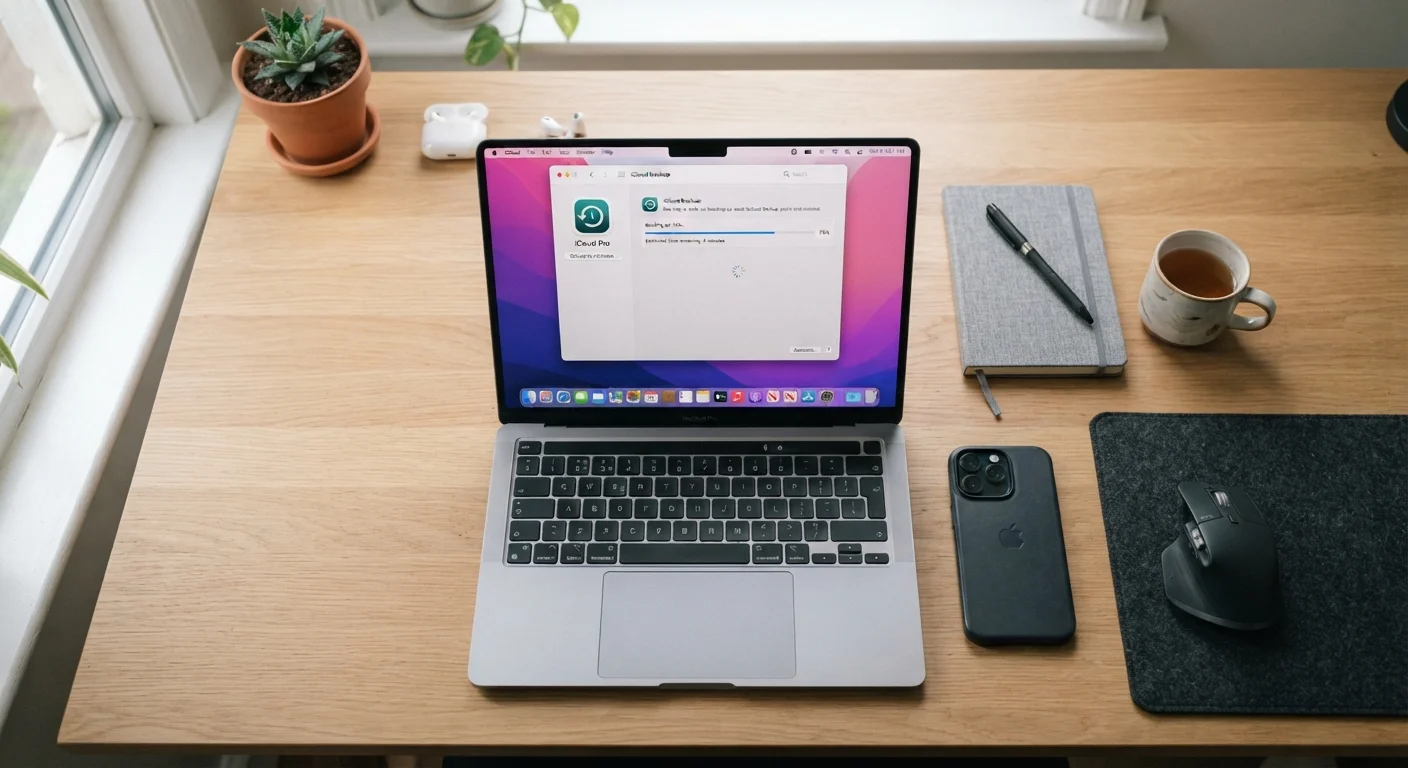
Back Up Your Data
Sign Out of Accounts and Disable Locks
Perform a Factory Reset
Physical Preparation
Tools and Accounts You'll Need Ready
Before working through the checklist, gather what you'll need. Having these on hand prevents interruptions mid-process.
Cloud backup service (iCloud or Google One)
Stores your photos, contacts, and app data so nothing is lost when the device is wiped.
Computer with USB cable
Used to manually transfer or verify large photo and video libraries as a secondary backup.
Apple ID or Google account credentials
Required to sign out of activation lock services before the factory reset.
SIM card removal tool (or a straightened paper clip)
Needed to eject the SIM tray on most modern smartphones.
Microfiber cloth
Used to clean the phone's screen and body before the physical inspection.
Once your new device is set up and verified, our guide on transferring everything to a new phone without losing anything walks through migrating contacts, apps, and settings reliably on both Android and iOS.
Skipping Account Sign-Out Ruins Trade-In Value
If Find My iPhone or Find My Device remains active when you hand over the phone, most trade-in programs will reject the device or significantly reduce its value. The activation lock makes the phone unusable for the next owner, and it cannot be removed remotely once the device leaves your hands. Always sign out of your Apple ID or Google account - and confirm the lock is disabled - before completing any trade-in.
After the Trade-In: Getting Started on Your New Device
Once you've confirmed the trade-in is complete, turn your attention to your replacement device. The first week matters - account setup, notification management, and understanding storage all shape how well the phone serves you long-term. Our article on what new smartphone users should know in the first week covers the essentials.
If you're also evaluating a trade-in offer or deal online, treat it with the same scrutiny you'd give any purchase. Our checklist for evaluating any online deal can help you verify whether an offer is genuinely worthwhile before committing.
Don't Factory Reset Before Verifying Your Backup
A factory reset permanently deletes everything on the device. Before initiating a reset, open your backup destination - whether iCloud, Google Photos, or a computer folder - and confirm your photos, contacts, and important files are actually there. Assuming a backup ran successfully without verifying it is one of the most common causes of permanent data loss during phone upgrades.
The content on this site is for informational purposes only and is not a substitute for professional advice. Always consult a qualified professional for guidance specific to your situation.