

Our Verdict
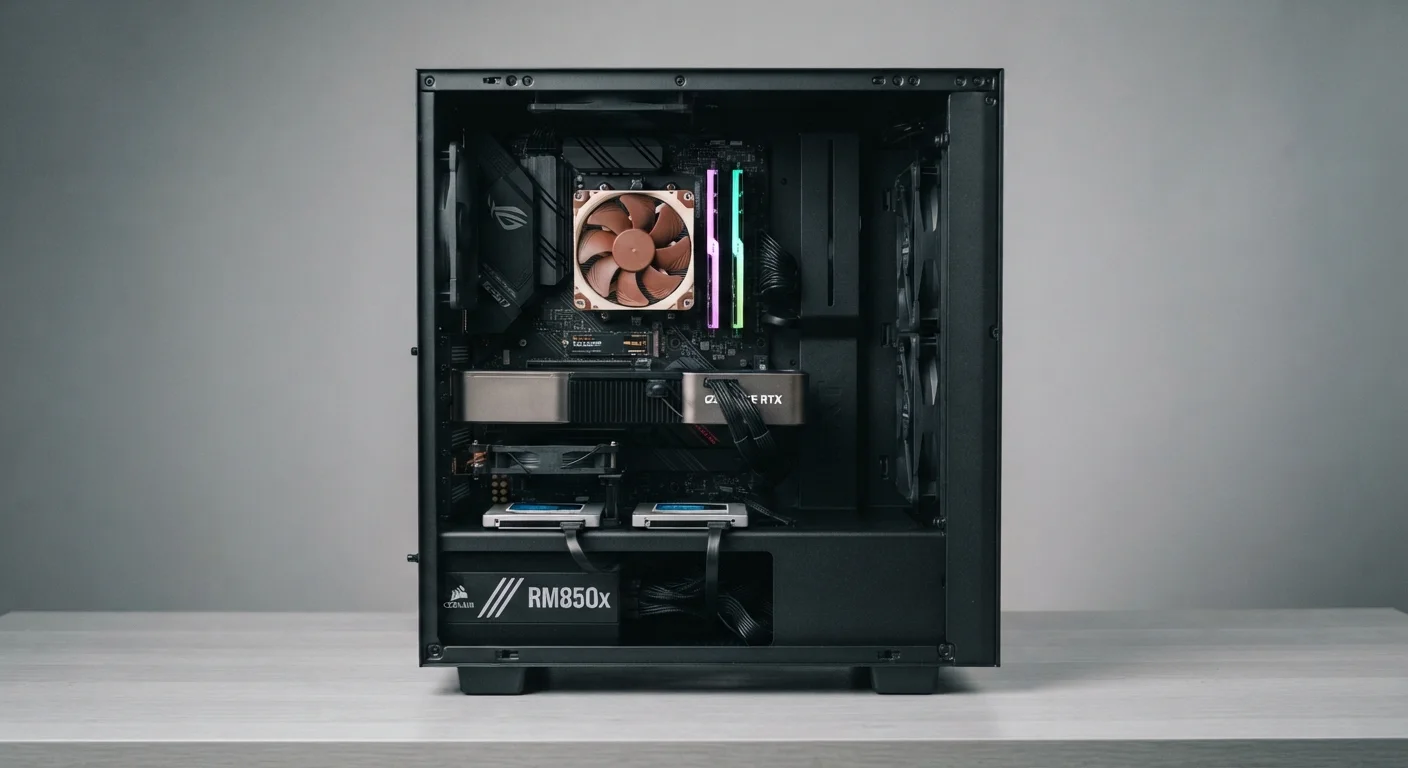
Upgrading a desktop PC can extend its useful life significantly, but only when you target the right components for your specific workload. RAM and storage upgrades tend to offer the clearest return for general users, while GPU and CPU swaps carry more risk and require careful compatibility research before committing.
Desktop owners whose systems feel sluggish but are otherwise functional - particularly those running systems that are three to six years old with original factory configurations.
Why Upgrades Don't All Deliver Equally
Desktop PCs have an advantage laptops rarely offer: modularity. Most components can be swapped out individually, which means you can extend a machine's useful life without replacing the entire system. But that flexibility comes with a catch - not every upgrade produces a meaningful result, and some create new bottlenecks rather than solving old ones.
Before spending anything, it helps to identify what's actually limiting your system. A machine that boots slowly and takes forever to open apps likely has a storage problem. One that stutters during video calls or multitasking may be RAM-constrained. Understanding the symptom first points you toward the right fix. As a general guide, some devices have considerably more usable life left than most people assume - and a desktop PC is often near the top of that list.
Check Compatibility Before You Buy
Every desktop motherboard has specific limits: supported RAM types and speeds, CPU socket compatibility, and available expansion slots. Tools like CPU-Z (free software) can identify your current hardware in detail. Always verify component compatibility against your motherboard's official specifications before purchasing any upgrade.
The Upgrades Most Likely to Make a Real Difference
Two upgrades consistently deliver tangible results across a wide range of systems:
RAM (Memory)
If your desktop is running 8GB of RAM and you frequently have a browser, a video call, and a few other applications open at once, upgrading to 16GB often produces a noticeably snappier experience. RAM is relatively affordable and installation is straightforward on most desktop motherboards. Check your motherboard's supported speed and maximum capacity before purchasing.
Storage: Hard Drive to SSD
Replacing a traditional spinning hard drive (HDD) with a solid-state drive (SSD) is one of the most dramatic upgrades you can make to an older machine. Boot times, application launch speeds, and file transfer rates all improve substantially. This single swap can make a years-old system feel meaningfully faster for day-to-day tasks. For a broader view of when paying more upfront makes sense, see when the pricier option pays off long-term.
Extends system life without full replacement cost
A targeted RAM or SSD upgrade can add several years of productive use to an otherwise capable machine, often for a fraction of what a new desktop would cost.
SSD upgrades deliver immediately noticeable results
Replacing a mechanical hard drive with an SSD is one of the most reliable performance improvements available - boot times and app launches improve dramatically on nearly every system.
RAM additions reduce multitasking slowdowns
Most factory-configured desktops ship with modest RAM. Upgrading to 16GB or 32GB substantially reduces lag when running multiple applications simultaneously.
Modular design makes most upgrades user-accessible
Unlike laptops, most desktop components can be swapped without specialized tools, making installation achievable for anyone comfortable following instructions carefully.
Upgrades That Carry More Risk or Uncertainty
Some upgrades are genuinely valuable in the right context but can easily go wrong or disappoint:
GPU (Graphics Card)
For gaming or video work, a GPU upgrade can be transformative. But the GPU must be compatible with your motherboard's PCIe slot, fit within your case, and stay within your power supply's wattage limits. It's also the most expensive individual component upgrade, and the performance gain depends heavily on whether the GPU was the actual bottleneck.
CPU (Processor)
Upgrading a CPU is only possible if your motherboard supports the new chip's socket and chipset. In many cases, a CPU upgrade means buying a new motherboard too - at which point you're essentially rebuilding the core of the system rather than making a targeted improvement.
Power Supply
Often overlooked until something goes wrong, a failing or inadequate PSU can cause instability. But replacing a functioning PSU that isn't undersized rarely produces any perceptible improvement.
Compatibility errors can result in wasted spending
RAM speed, CPU socket type, and GPU power requirements must all match existing hardware. Purchasing incompatible parts is a common and costly mistake.
Older platforms have hard limits on improvement
A system built on an aging chipset may not support faster RAM, newer CPUs, or modern storage interfaces - leaving few meaningful upgrade paths available.
One upgrade can expose a new bottleneck
Adding a powerful GPU to a slow system can shift the limiting factor to the CPU or RAM, meaning the expected performance gain doesn't fully materialize.
Cumulative upgrade costs can exceed replacement value
If a system requires several component swaps to feel current, the combined expense may rival the cost of a more capable used or refurbished desktop.
How to Decide What Your System Actually Needs
Start with your workload. General office use and web browsing benefit most from RAM and SSD upgrades. Gaming and creative work may also involve the GPU. Heavy CPU-bound tasks like 3D rendering or video encoding are the narrowest case for a processor upgrade.
Also consider the age of your platform. A system built on a CPU architecture that's eight or more years old may have reached the end of what targeted upgrades can meaningfully achieve. At that point, the cost of component upgrades can approach - or exceed - the cost of a more capable used system. Specs alone don't tell the whole story when evaluating whether to upgrade or replace.
~5×
Speed gain: SSD over HDD for typical boot times
Independent benchmark testing across multiple consumer systems consistently shows SSDs completing boot sequences in 10-15 seconds versus 50-70 seconds for HDDs.
16 GB
RAM threshold for smooth modern multitasking
Most PC hardware analysts and system builders identify 16GB as the practical baseline for comfortable multitasking in current operating environments.
The content on this site is for informational purposes only and is not a substitute for professional advice. Always consult a qualified professional for guidance specific to your situation.